Gift Card Transaction Screen Control
A standard SCA Gift Card transaction flow usually displays few screens in the terminal, like -
- Card Read screen (if Card Present) to capture card input from the user.
- Authorizing screen that indicates the ongoing transaction processing.
- Transaction Status screen displays the final approval or decline status of the transaction.
SCA application has been enhanced to control those screens (like, Authorizing and Transaction Status) displayed during the Gift card transaction, primarily for the administrative purpose like Activation, adding value to the card, balance enquiry etc. This enhancement ensures that non-interactive gift card transactions minimize unnecessary terminal UI output, whether in Card Present or Card Not Present (Account Passthrough) scenarios, allowing the system to focus only on essential processing.
To enable this feature, a new field SCREEN_UPDATES_ENABLED (with value 0/1) has been introduced and the POS sends this request field in the following Gift payment commands: Activate, Add Value, Balance Inquiry, Close/Cashout, Deactivate, Block Activate.
Example: <SCREEN_UPDATES_ENABLED>0</SCREEN_UPDATES_ENABLED>
Refer to Gift Card command request section for more details on the newly added field.
Card Present Scenario
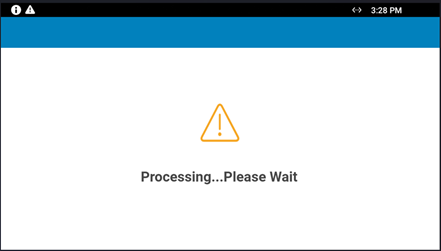
When a Gift Card is swiped, the terminal displays a “Processing… Please Wait” message. This display remains the same for Gift Card transactions with or without a Gift PIN, ensuring a consistent user experience during processing.
Card Not Present Scenario
In Gift Card Account Passthrough or manual entry transactions, POS sends all required card details without the use of a physical card. During this process, the terminal remains on the Idle, Welcome, or Line Item screen, and the “Processing… Please Wait” screen is not displayed.
Handling Missing Fields During Manual Entry
When the POS does not provide all required transaction details, the terminal prompts the user to enter the missing information. Once the required data is captured, the terminal displays the “Processing… Please Wait” screen while the transaction proceeds.
