V660c-A and V660p-A - User Interface
Last updated: 08-May-2026
Idle Screen
In Semi-Integrated mode of application, the Idle Screen displays upon device power up, after reboot, and after transaction completion. SCA supports the following merchant controlled media areas: Idle Screen Video, Idle Screen Animation, and Idle Screen Full Image.
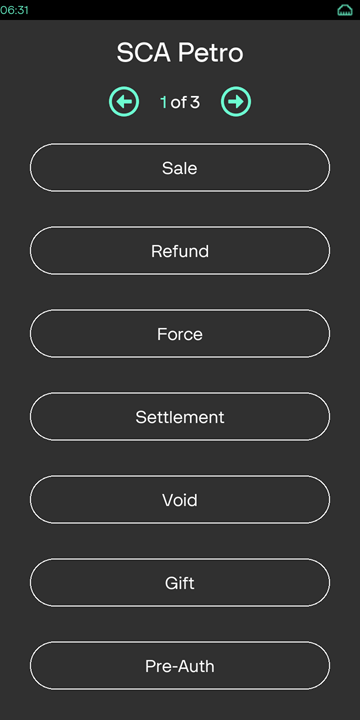
In Standalone mode of application, the Main Menu displays upon device power up, after reboot, and after transaction completion.
| Idle Screen | Welcome Screen | Main Menu Screen |
|---|---|---|

|
|
|
Transaction Flows
Sale
| Display | Description |
|---|---|
|
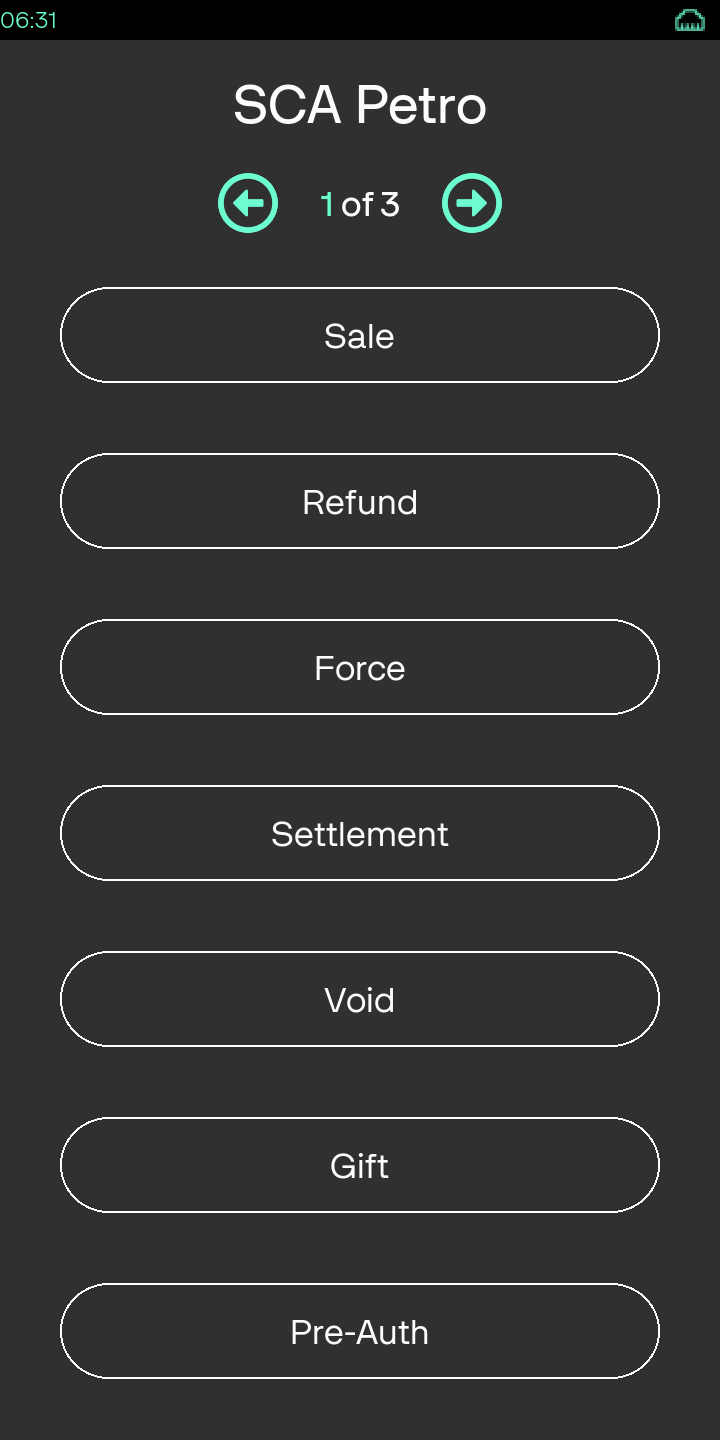
Select the transaction type - Sale |
|
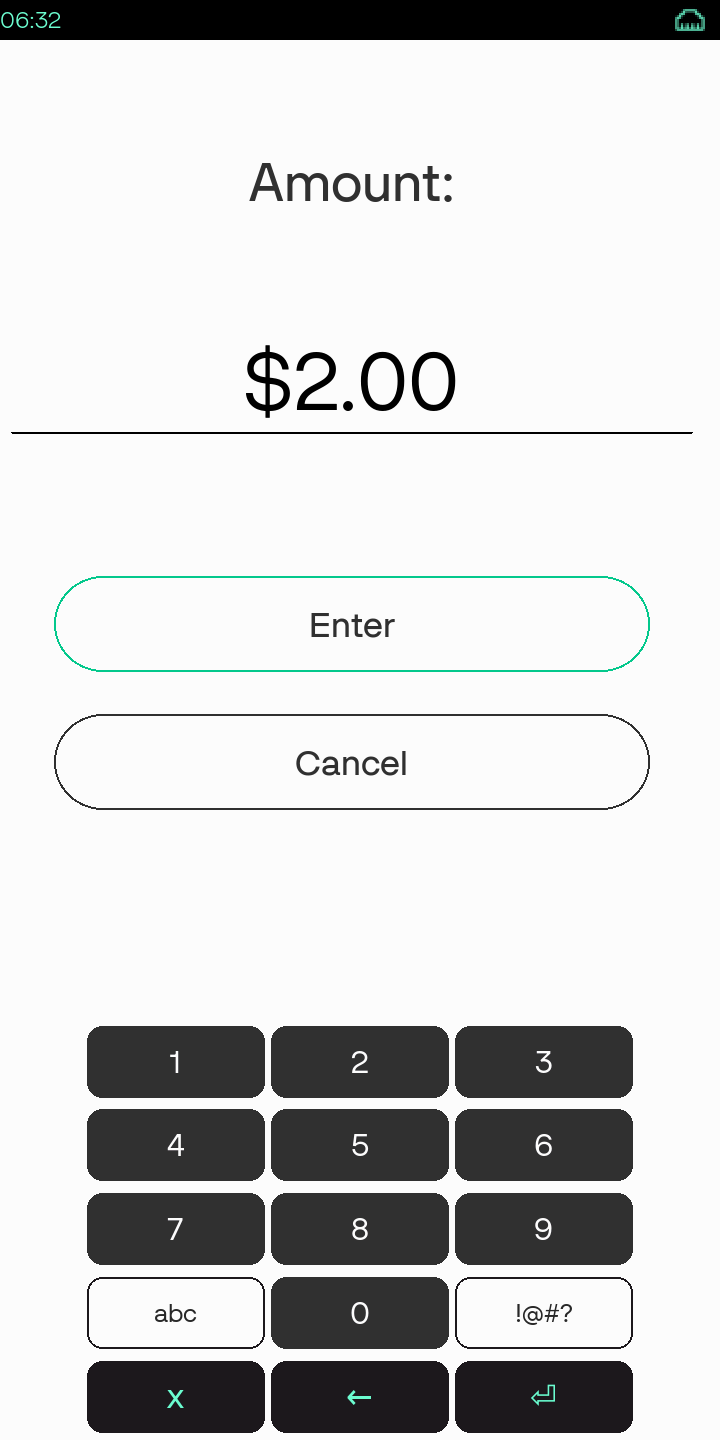
Enter the amount for the Sale transaction. |
|
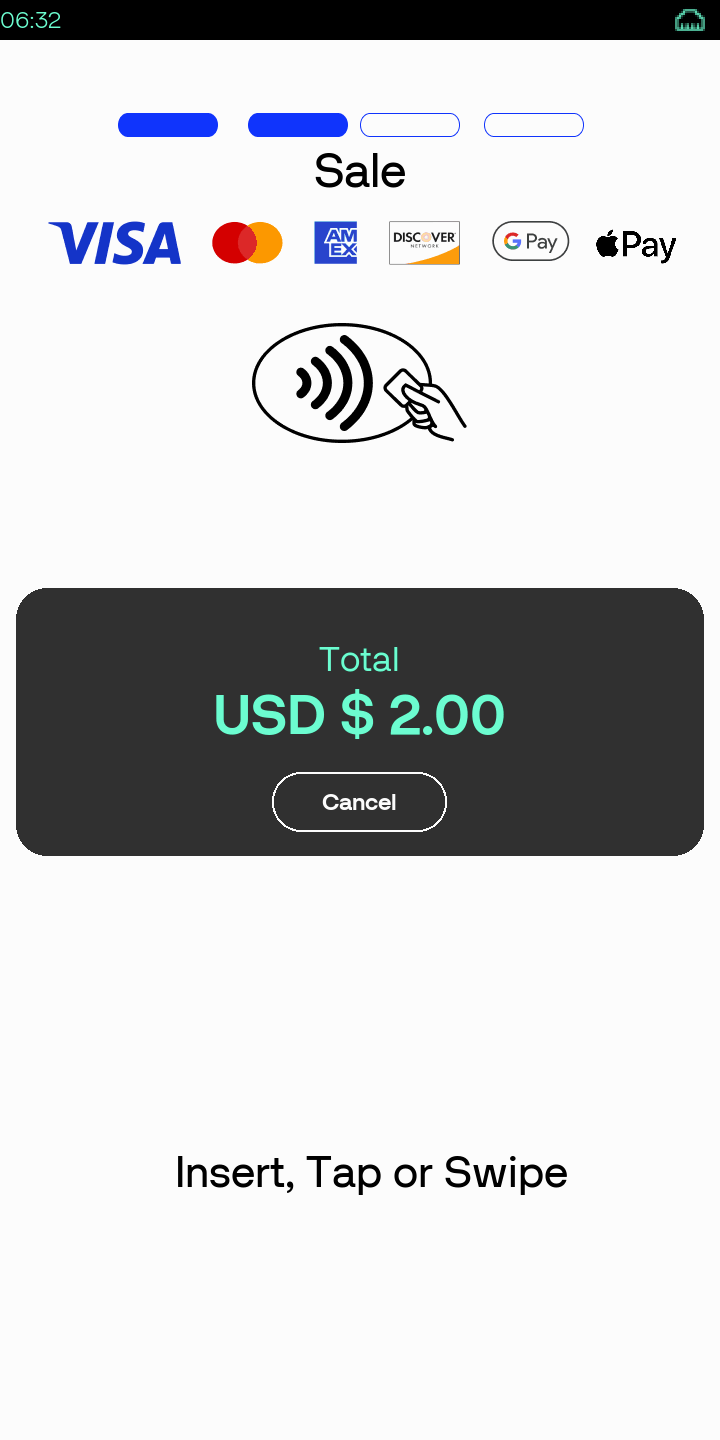
Select the card entry mode as Insert, Tap, or Swipe |
|
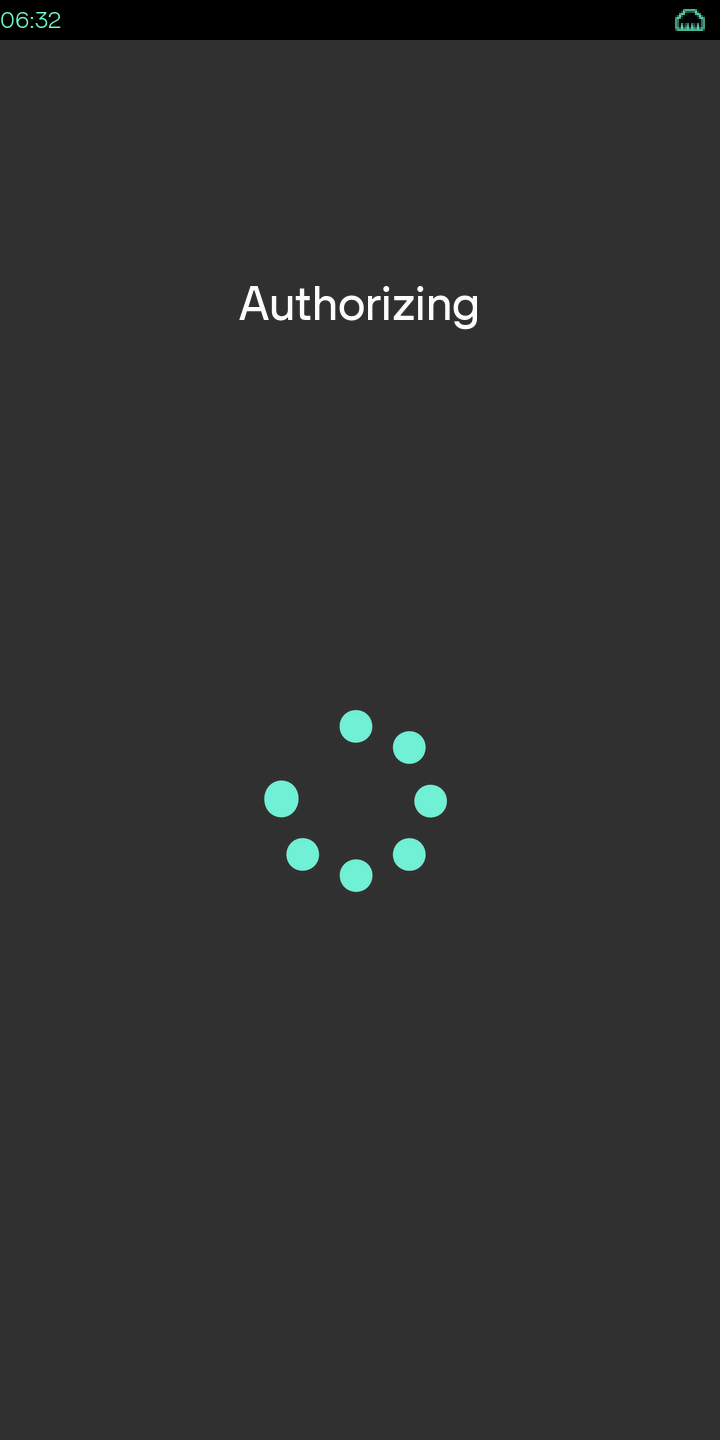
Authorization in progress screen. |
|
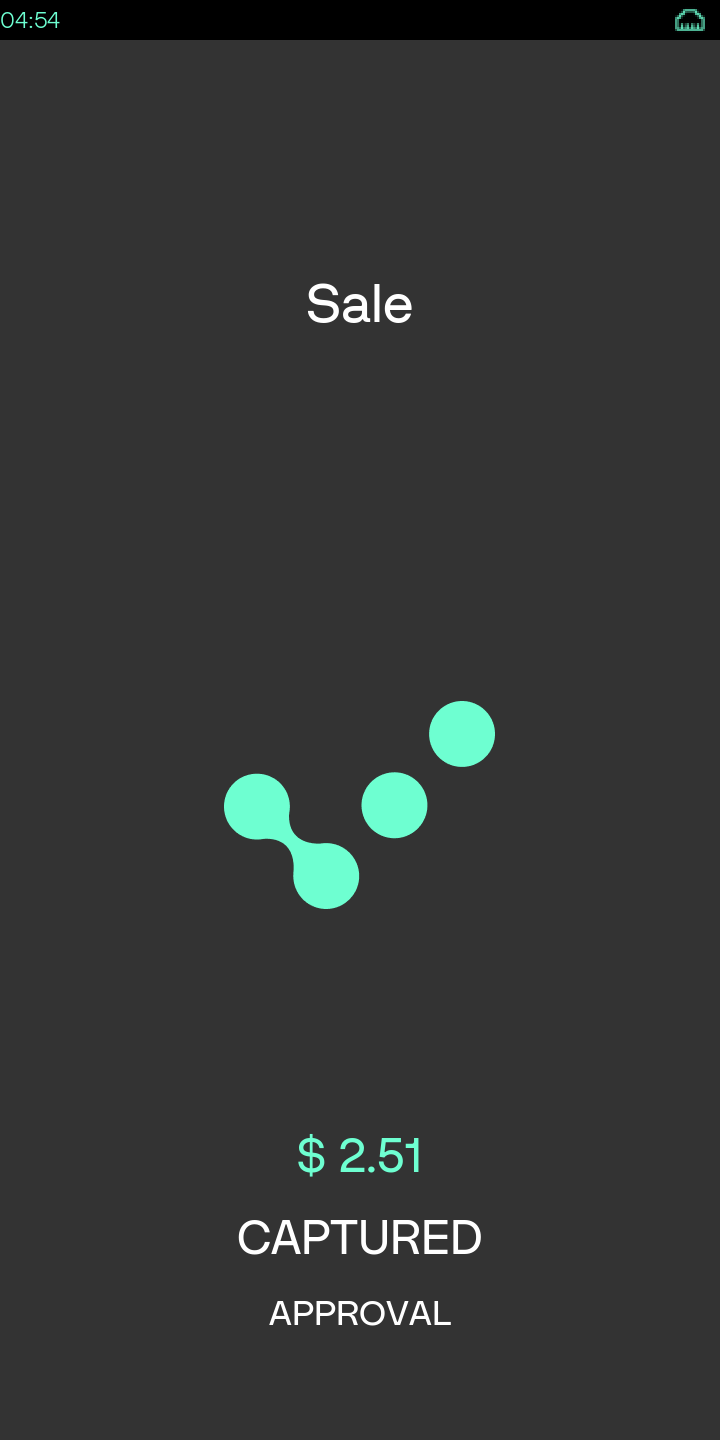
Transaction is approved screen. After the transaction is complete, the device will return to the Menu Screen. |
|
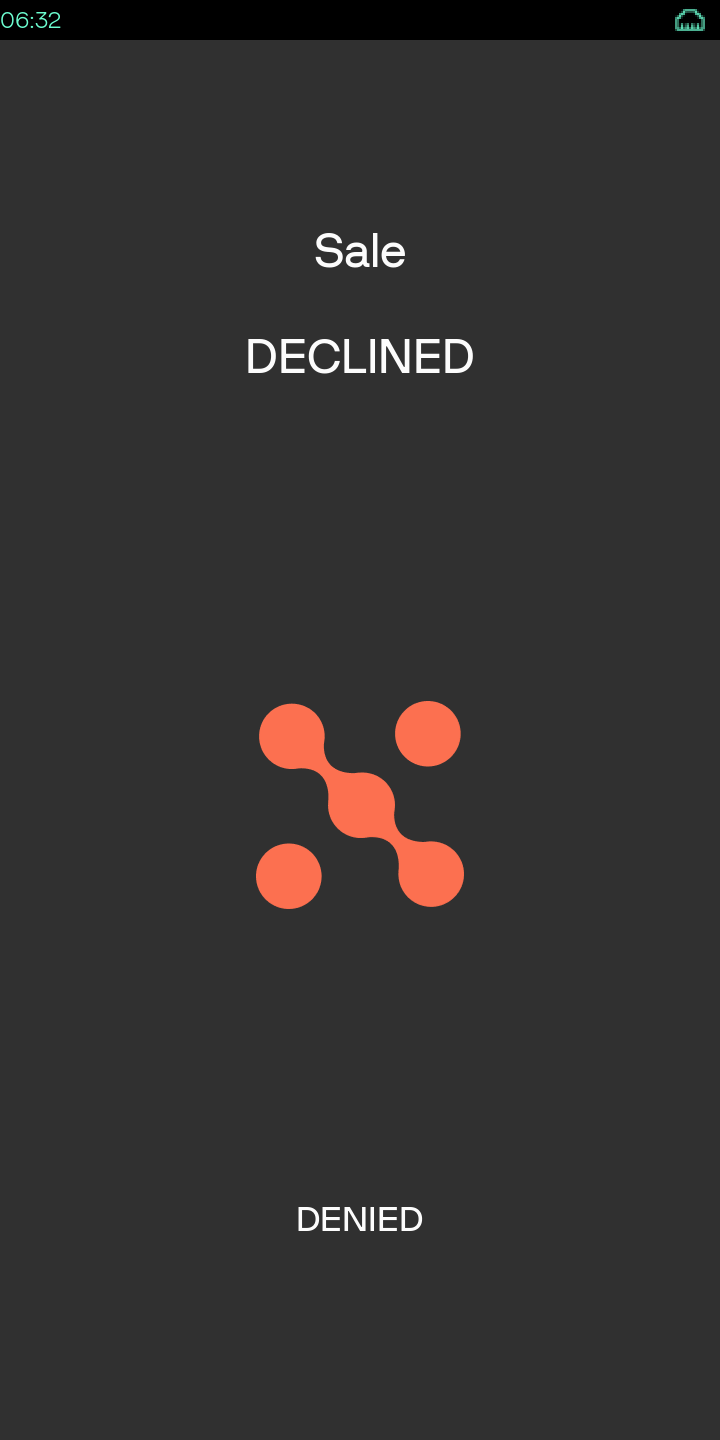
This is the Status screen as Sale Declined. |
Force
| Display | Description |
|---|---|
|
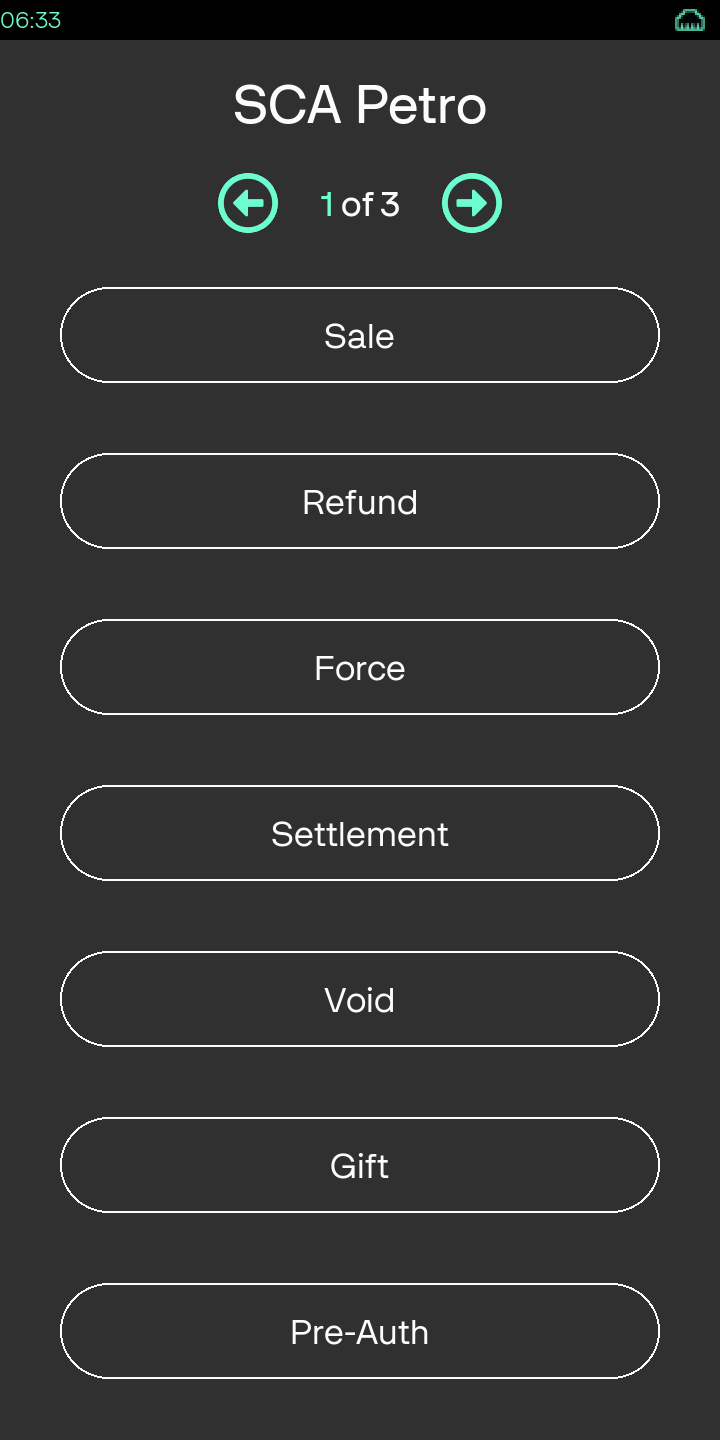
Select the transaction type - Force |
|
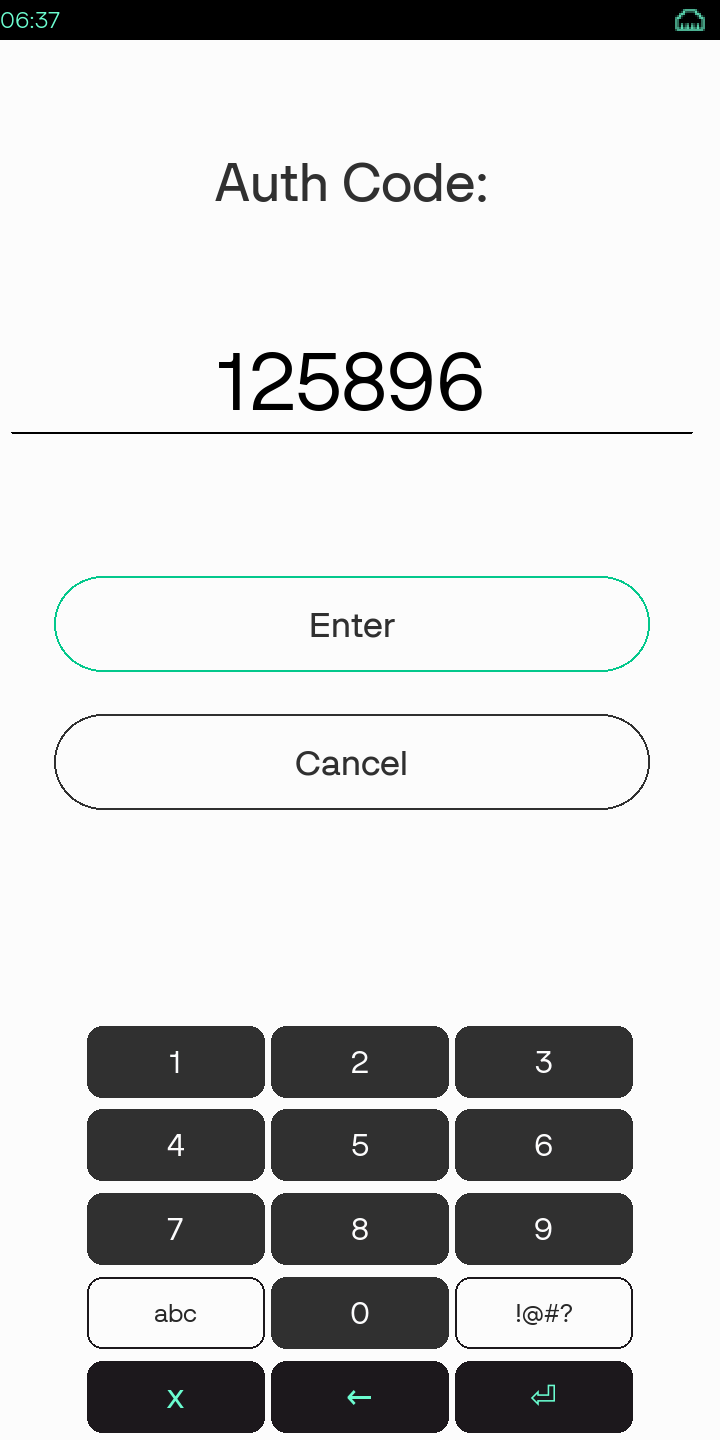
Auth Code is required for Force transaction in Standalone mode. Enter the Auth Code. |
|
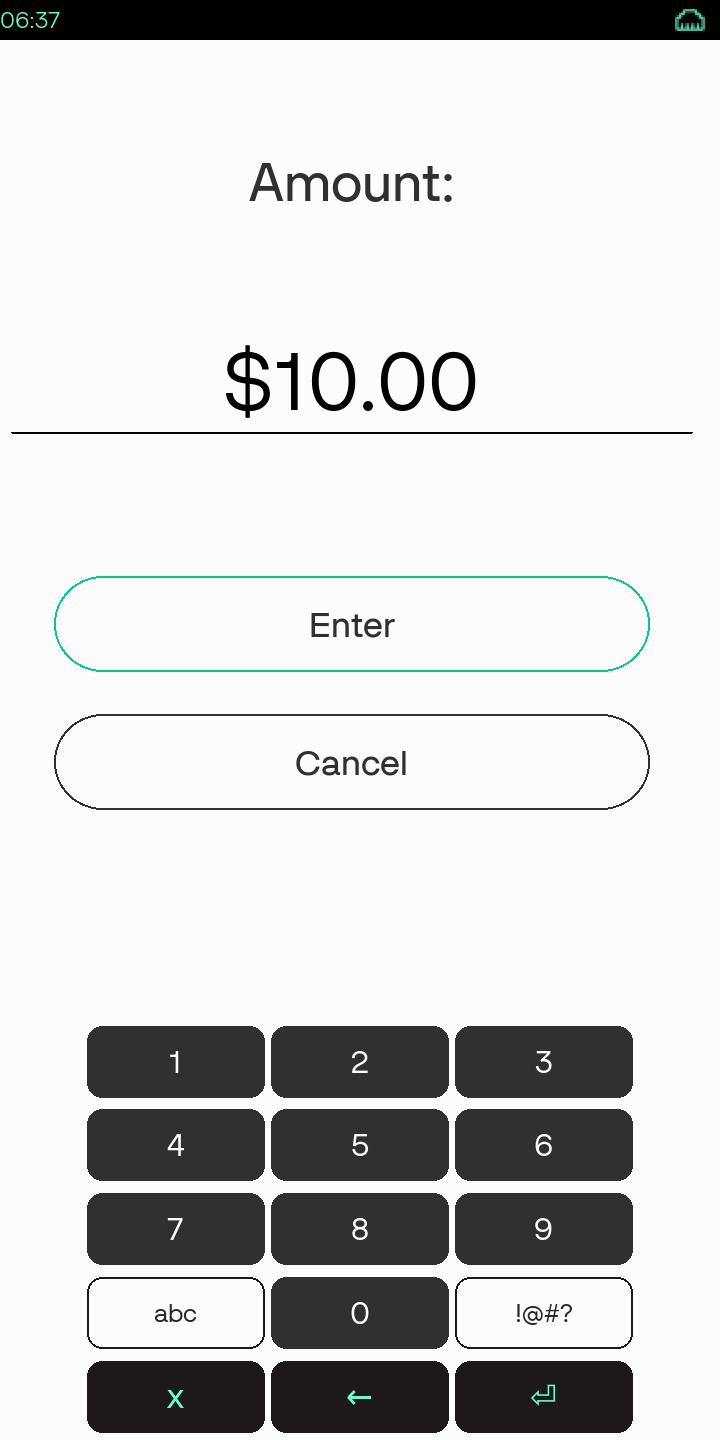
Enter the amount for the Force transaction. |
|
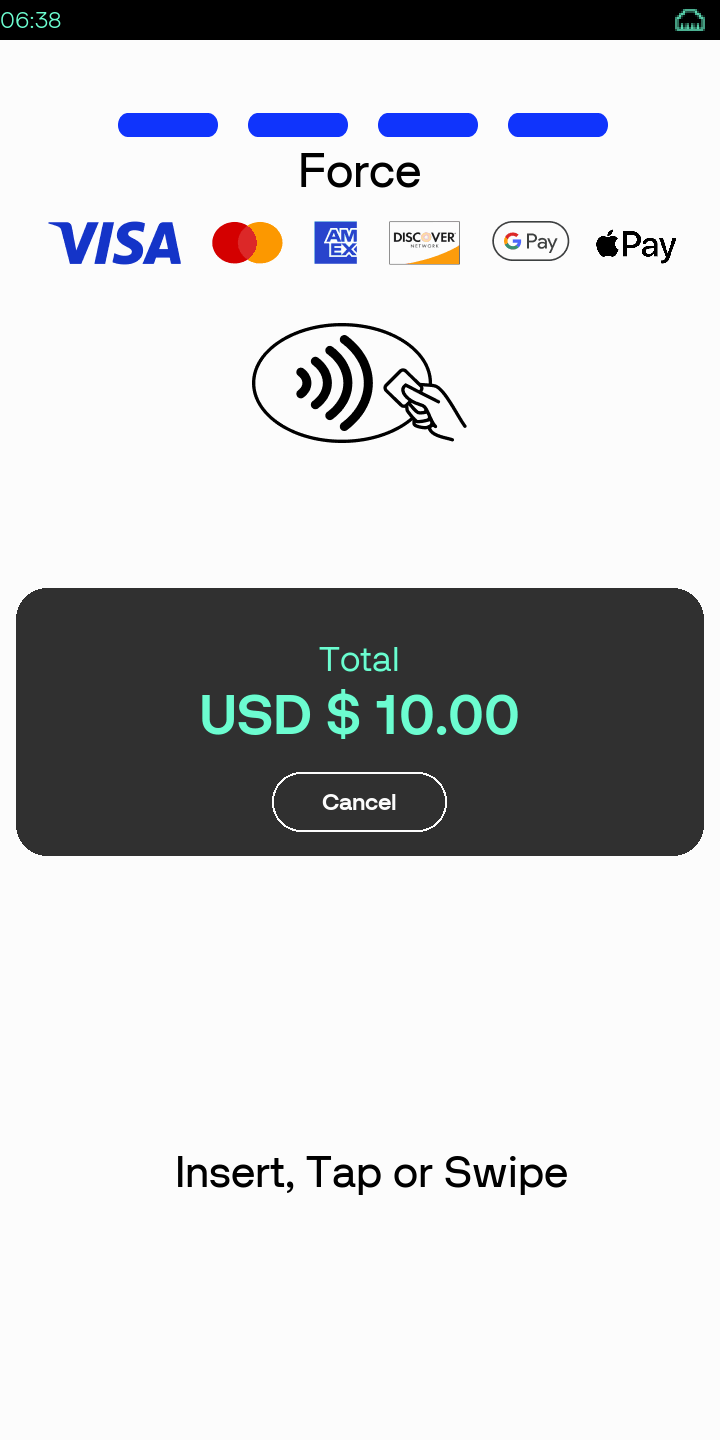
Select the card entry mode as Insert, Tap, or Swipe. |
|
|
Authorization in progress screen. |
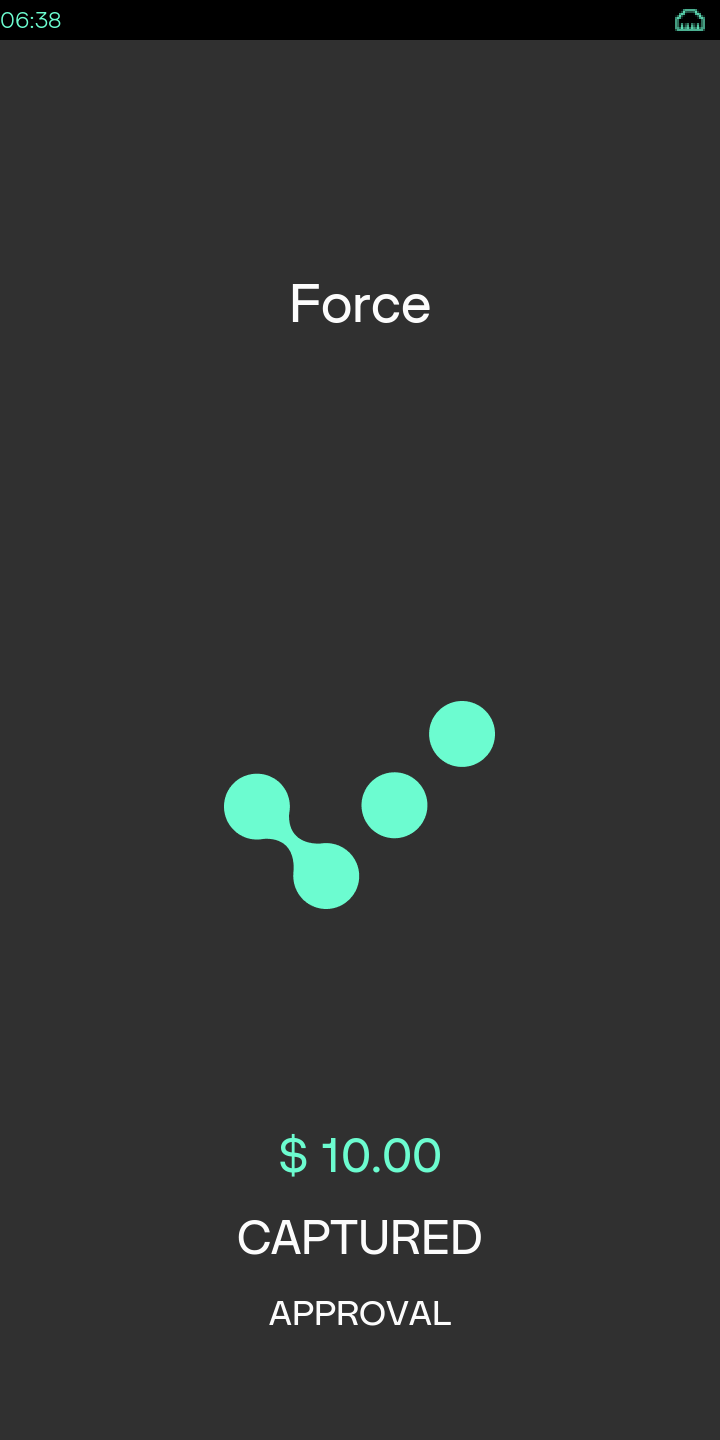
|
Transaction is approved screen. After the transaction is complete, the device will return to the Menu Screen. |
Refund
| Display | Description |
|---|---|
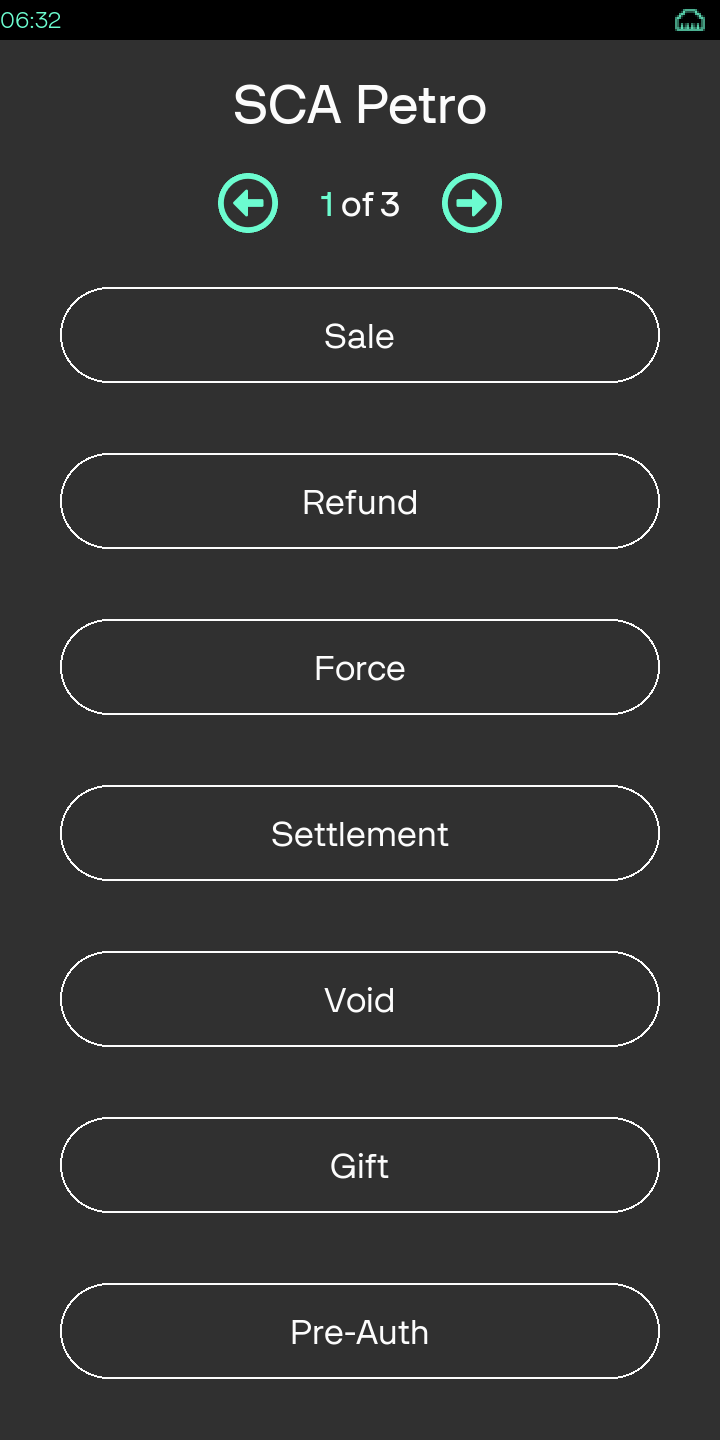
|
Select the transaction type - Refund |
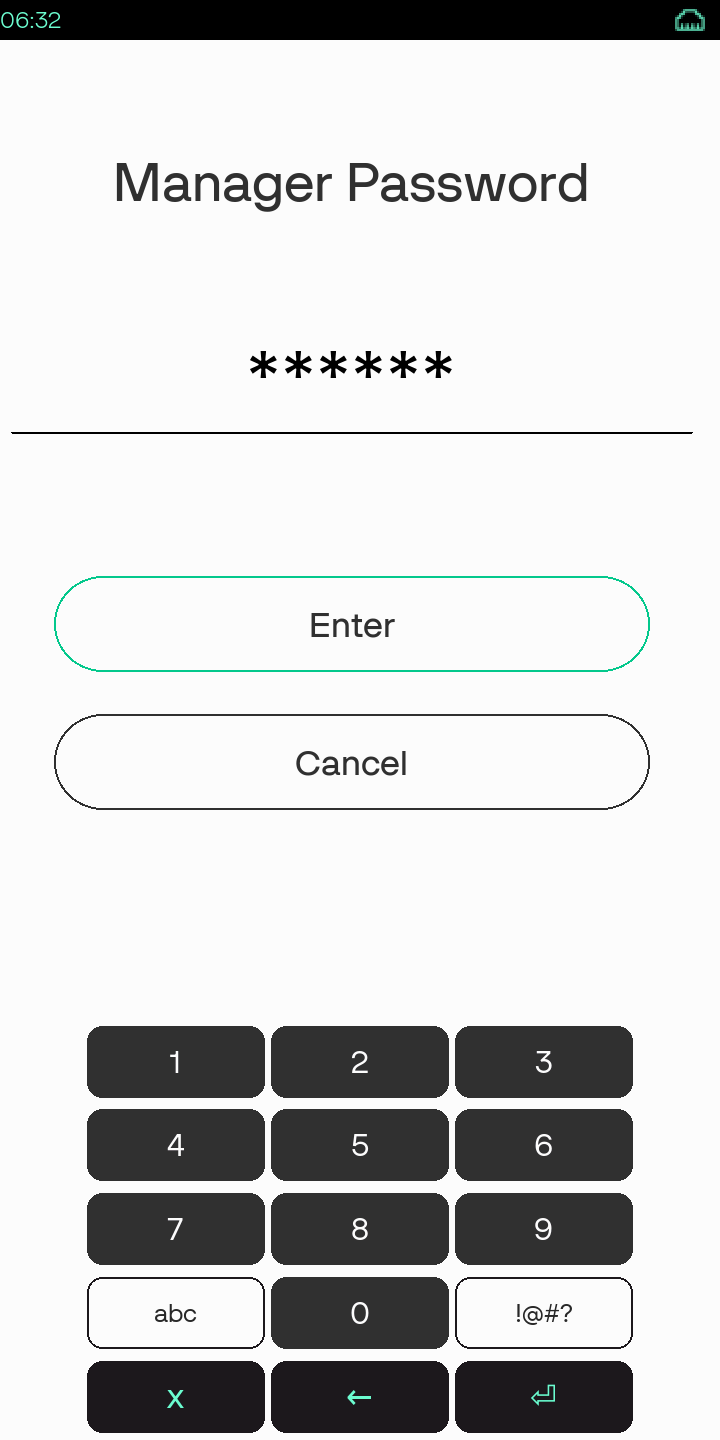
|
Manager Password is required for Refund transaction in Standalone mode. Enter the Manager Password. |
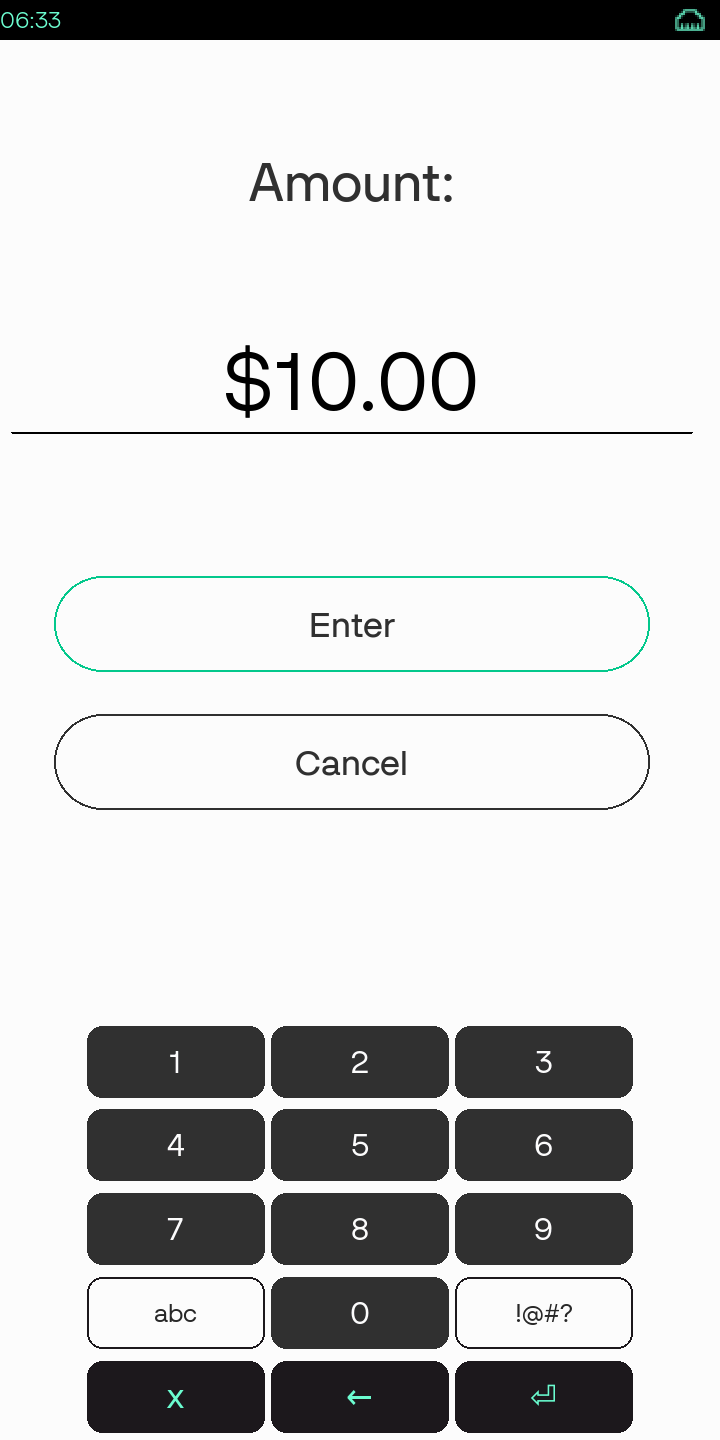
|
Enter the amount for the Refund transaction. |
|
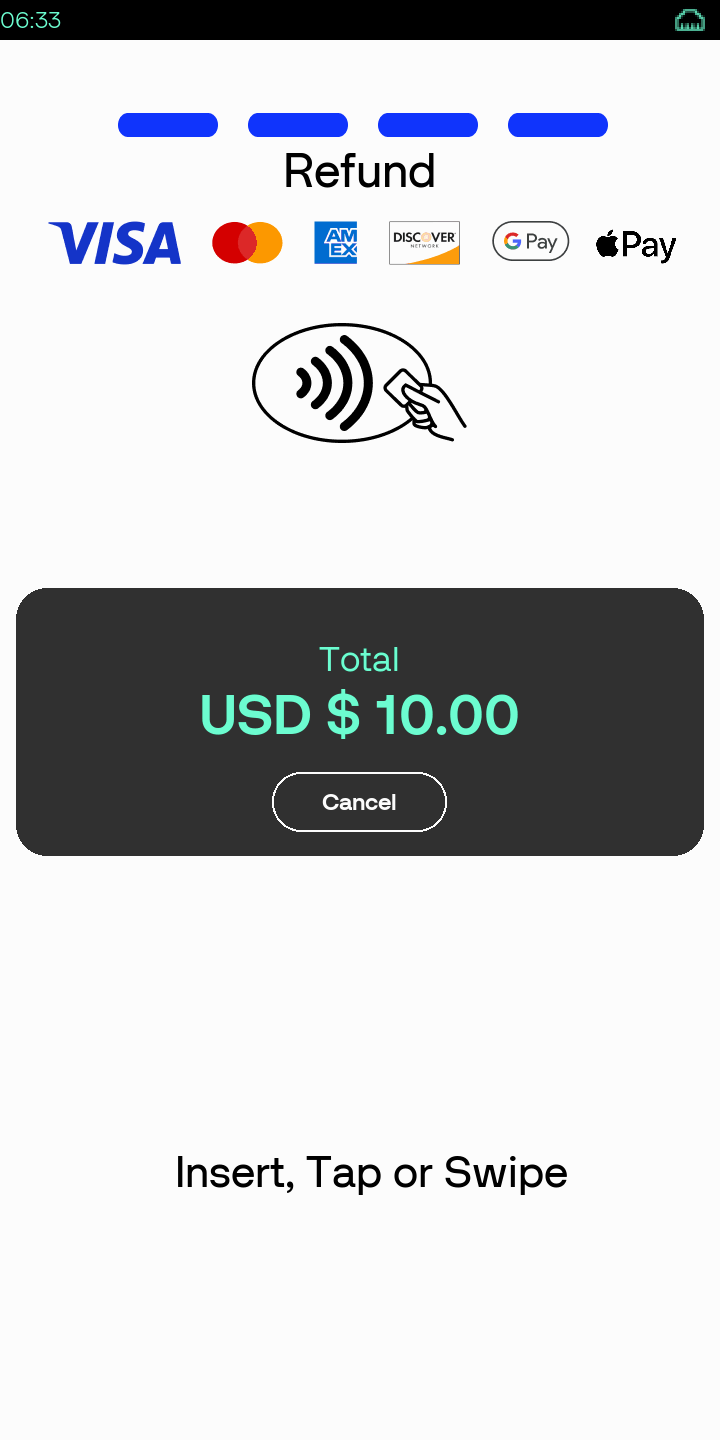
Select the card entry mode as Insert, Tap, or Swipe. |
|
|
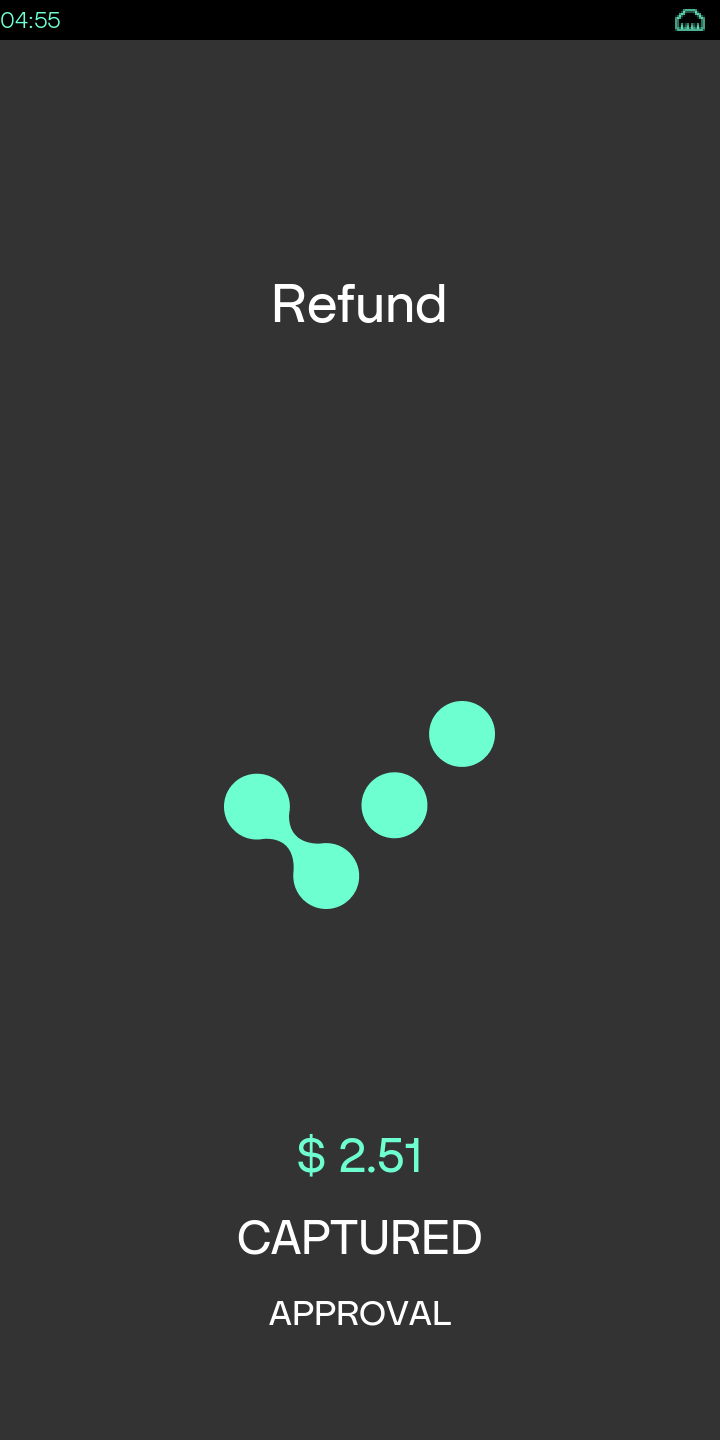
Authorization in progress screen. |
|
Transaction is approved screen. After the transaction is complete, the device will return to the Menu Screen. |
|
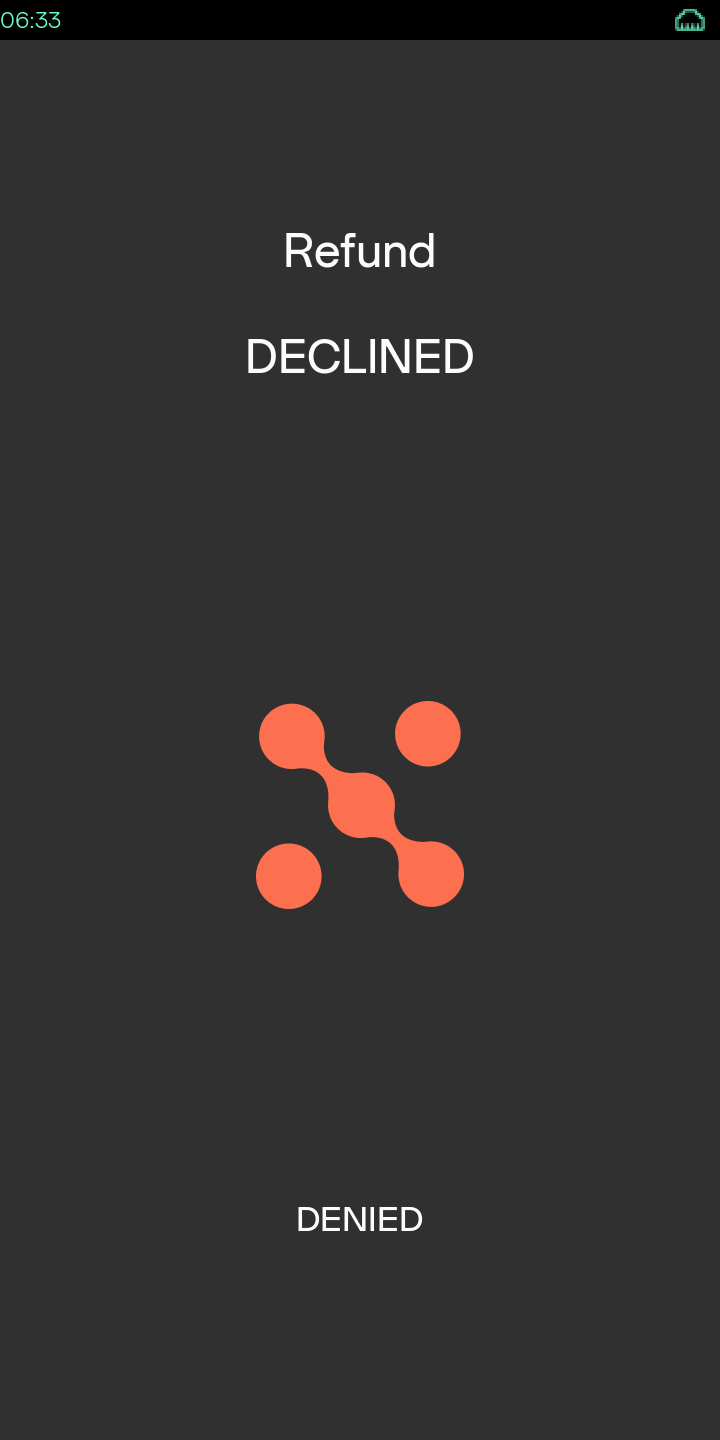
This is the status screen as Refund Declined if the transaction is not approved. |
Settlement
| Display | Description |
|---|---|
|
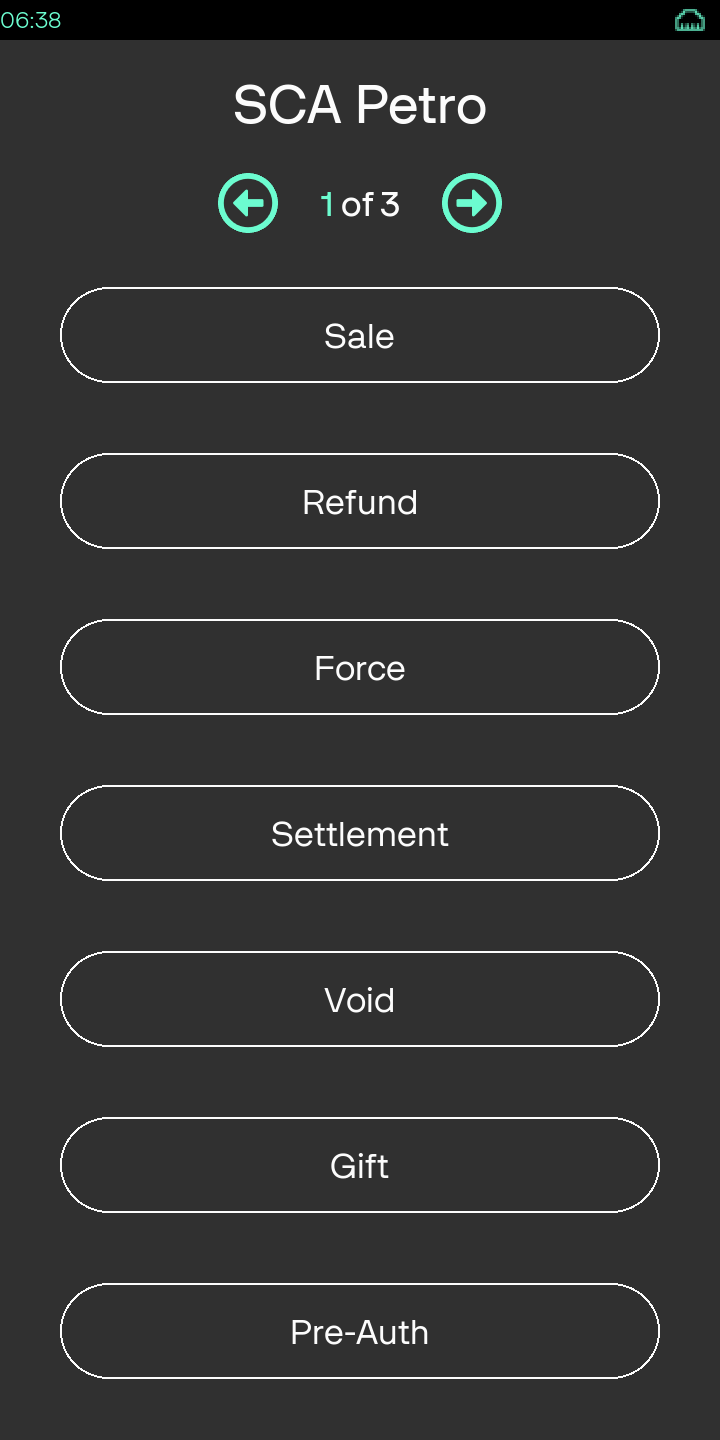
Select the transaction type - Settlement |
|
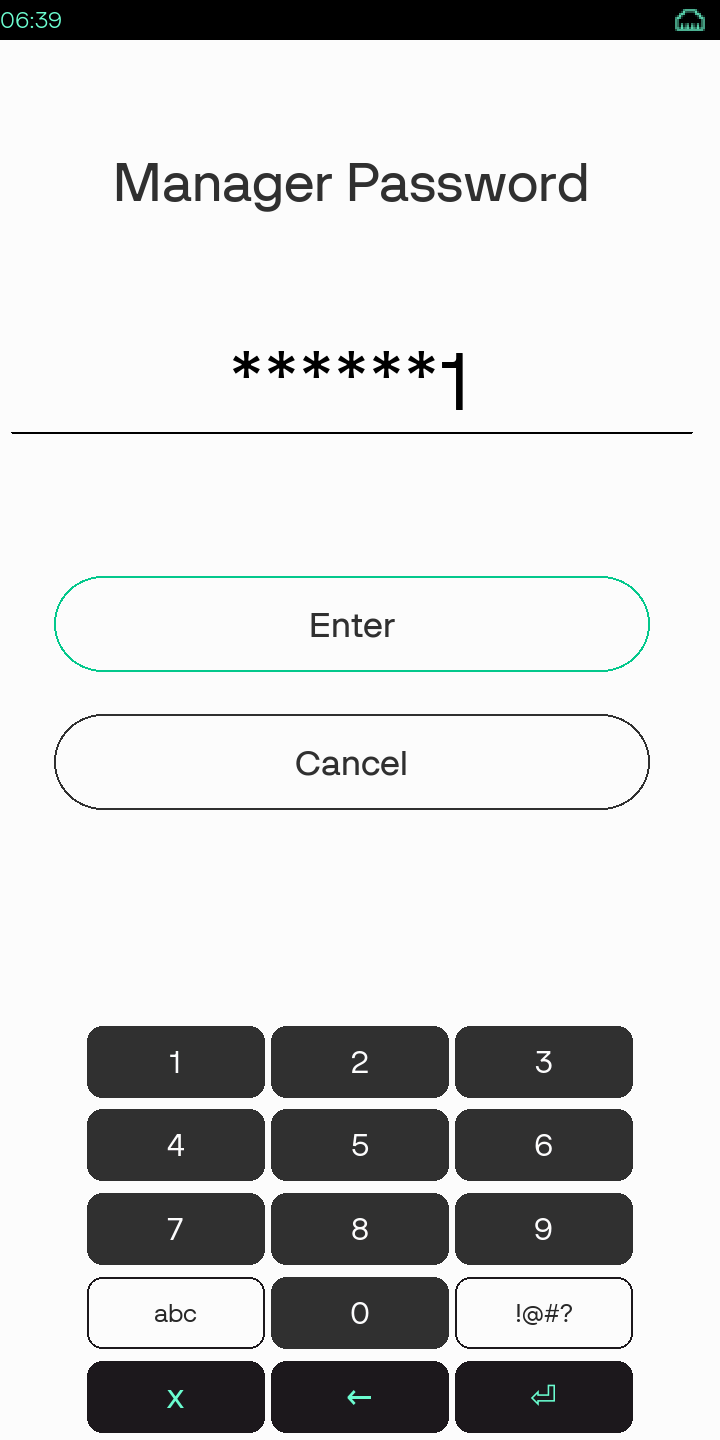
Manager Password is required for Settlement transaction in Standalone mode. Enter the Manager Password. |
|
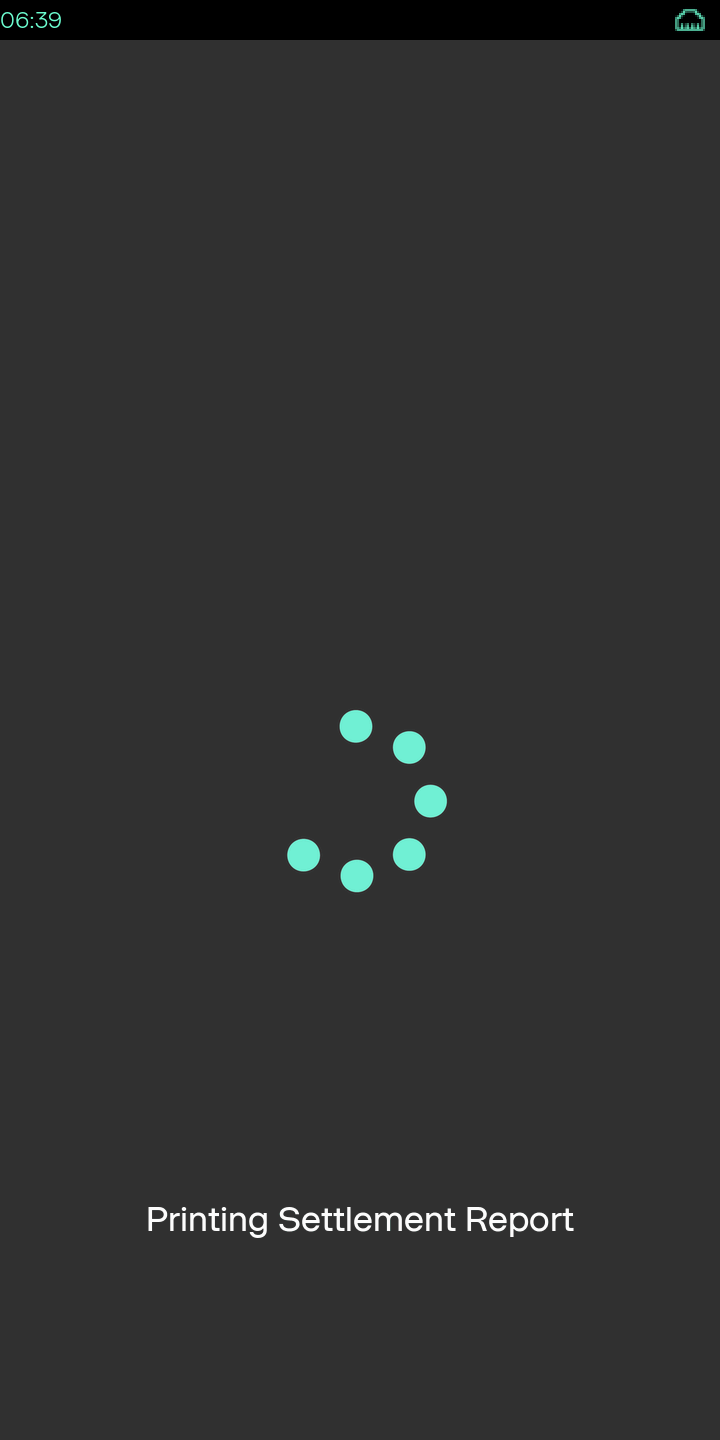
Printing fo settlement report is in progress. |
|
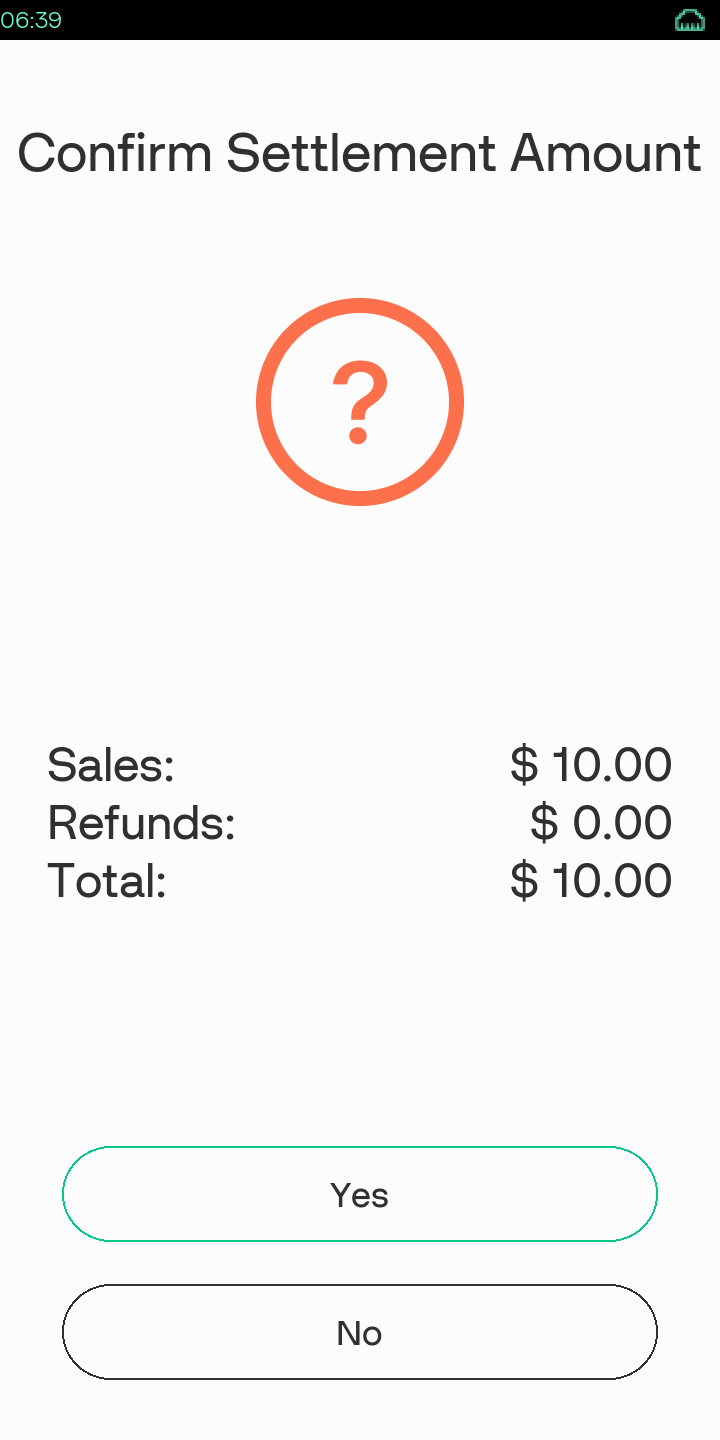
Select to confirm the settlement amount. |

|
Batch inquity request is in progress. |

|
Sending the batch total report. |
|
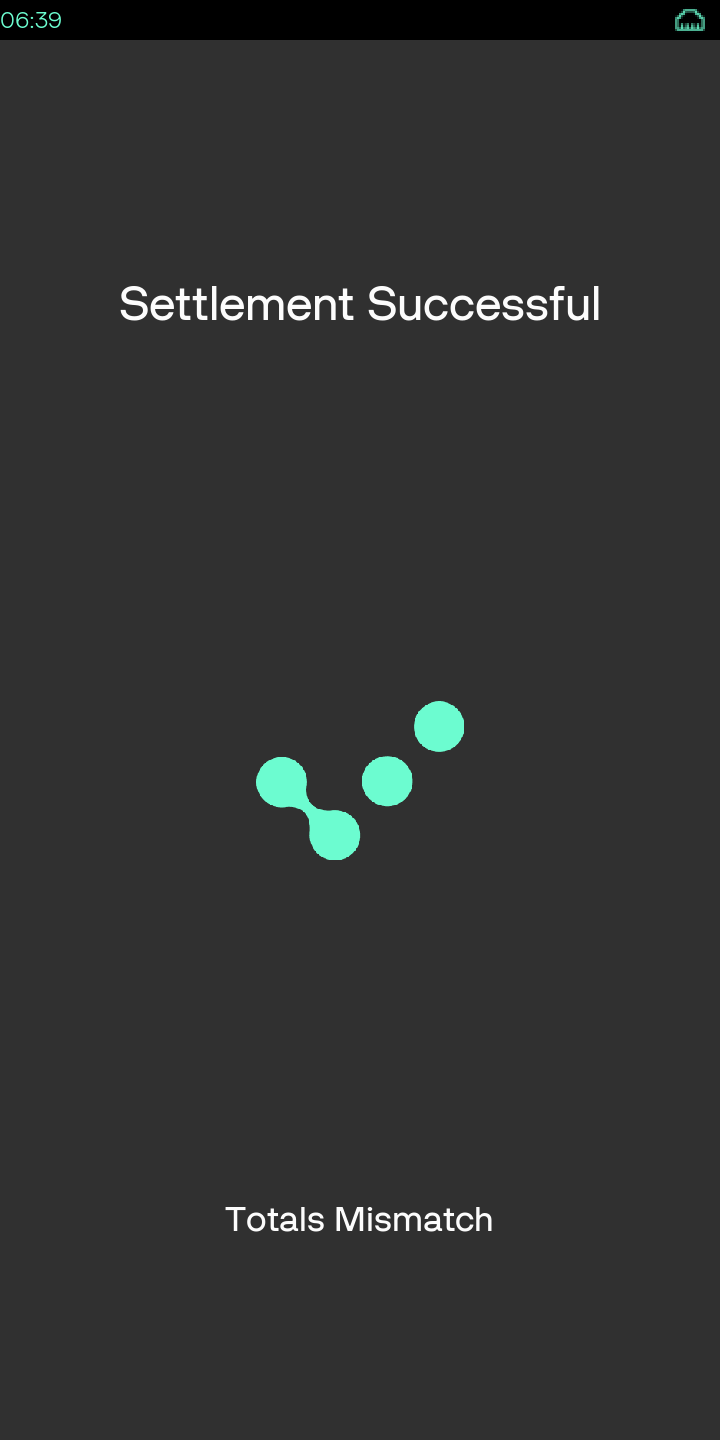
Settlement succesful screen, after the transaction is complete, the device will return to the Menu Screen. |
Void
| Display | Description |
|---|---|
|
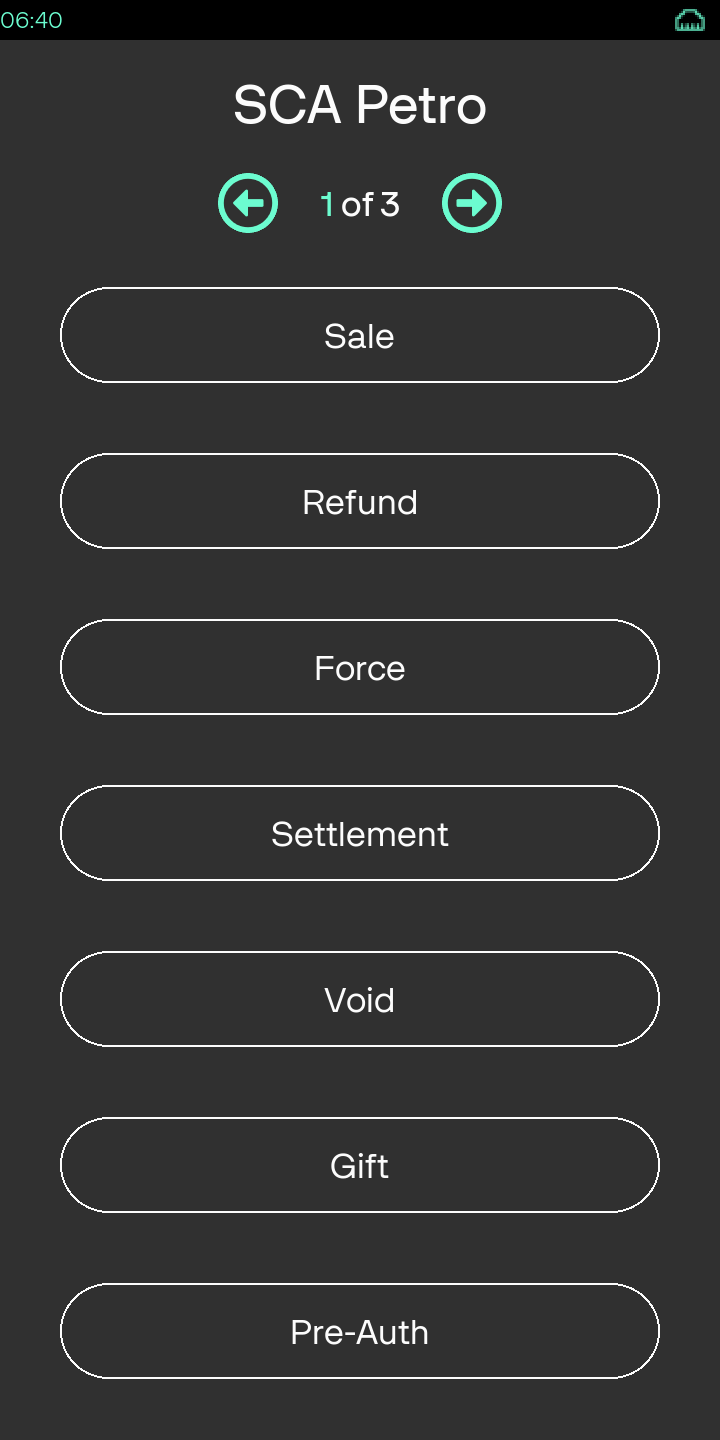
Select the transaction type - Void |
|
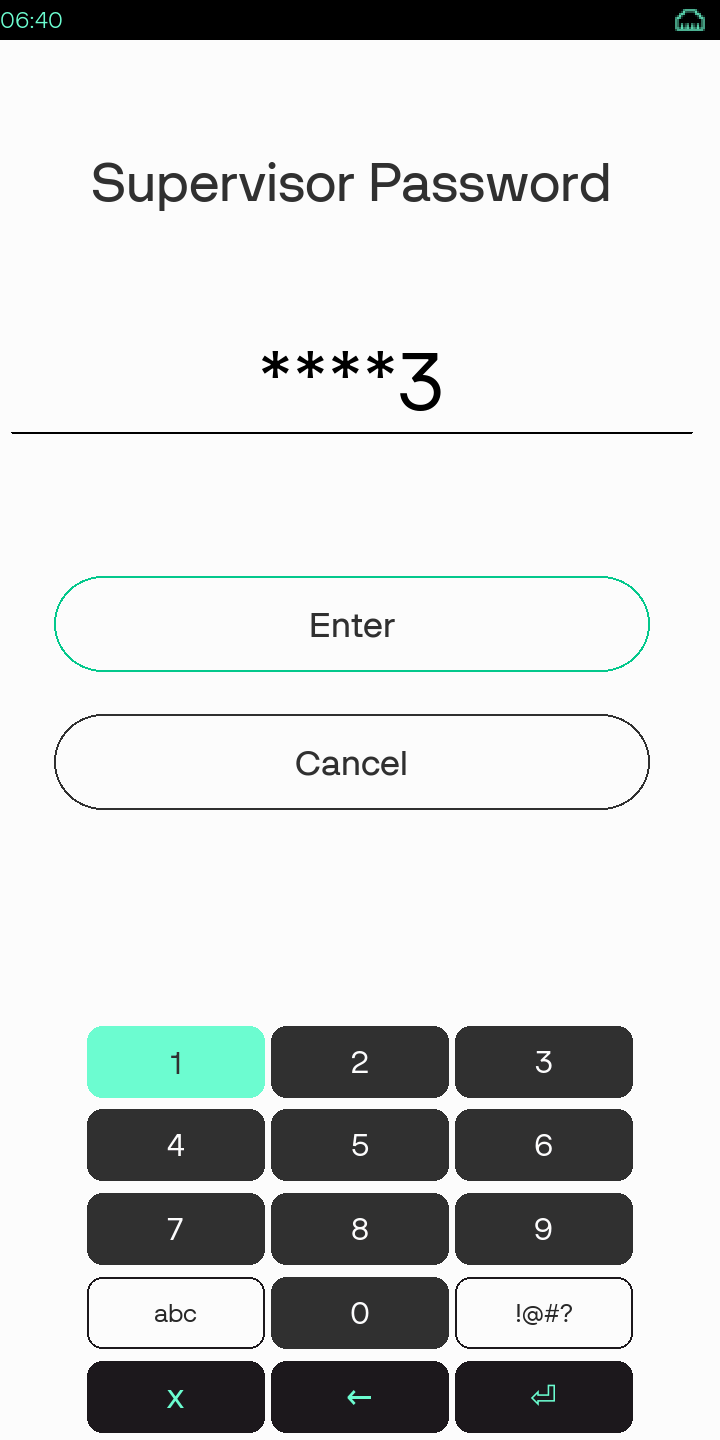
Supervisor Password is required for Void transaction in Standalone mode. Enter the Password. |
|
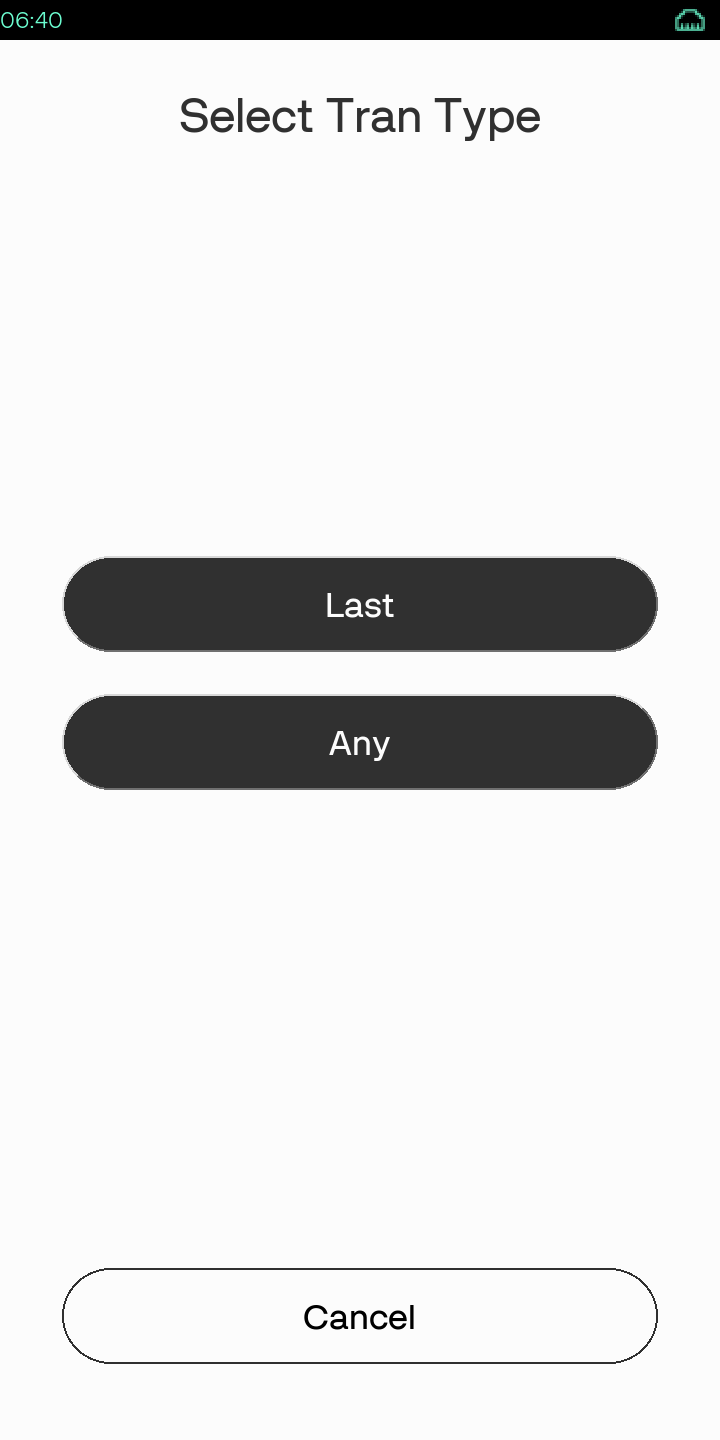
Select Last transaction type to Void. |

|
Retrieving the transaction type is in progress. |
|
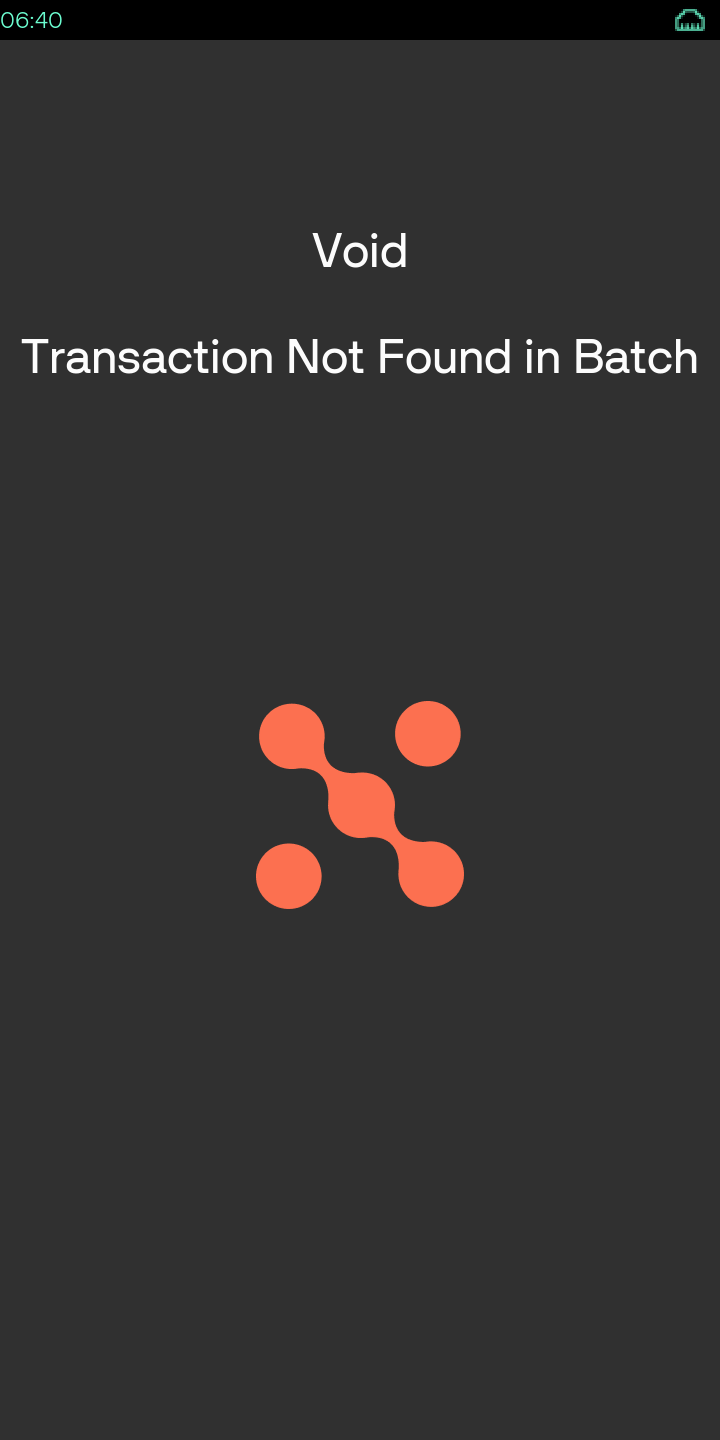
Void declined status screen for the last transaction. |
|
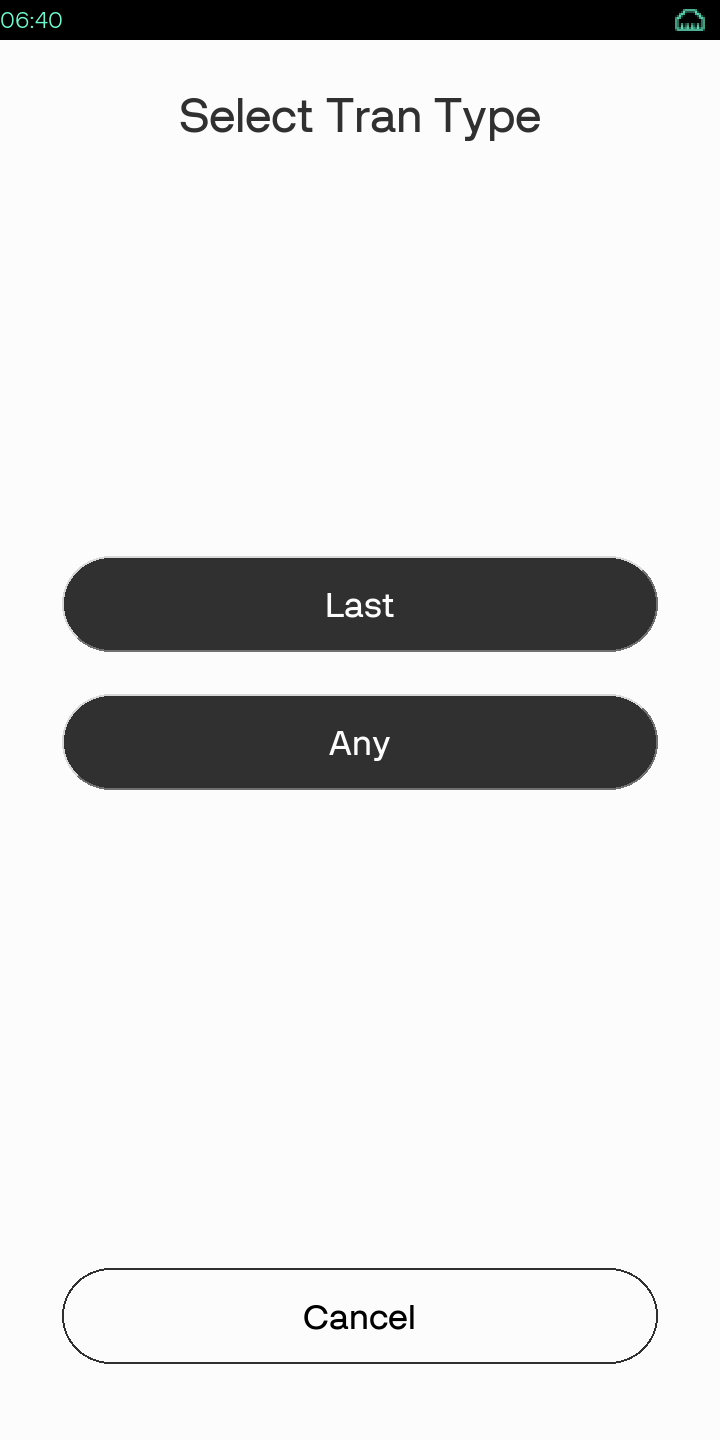
Select Any transaction type to Void. |
|
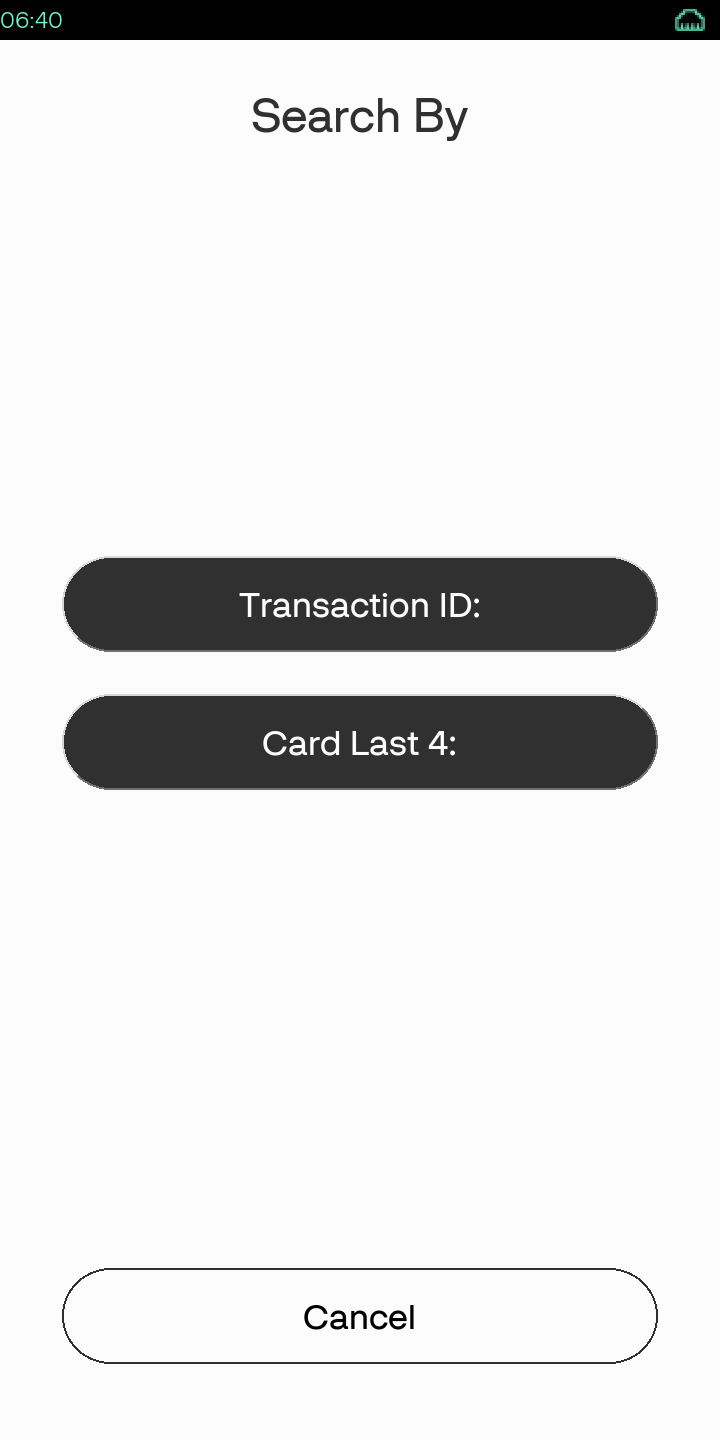
Select Transaction ID: to Void. |
|
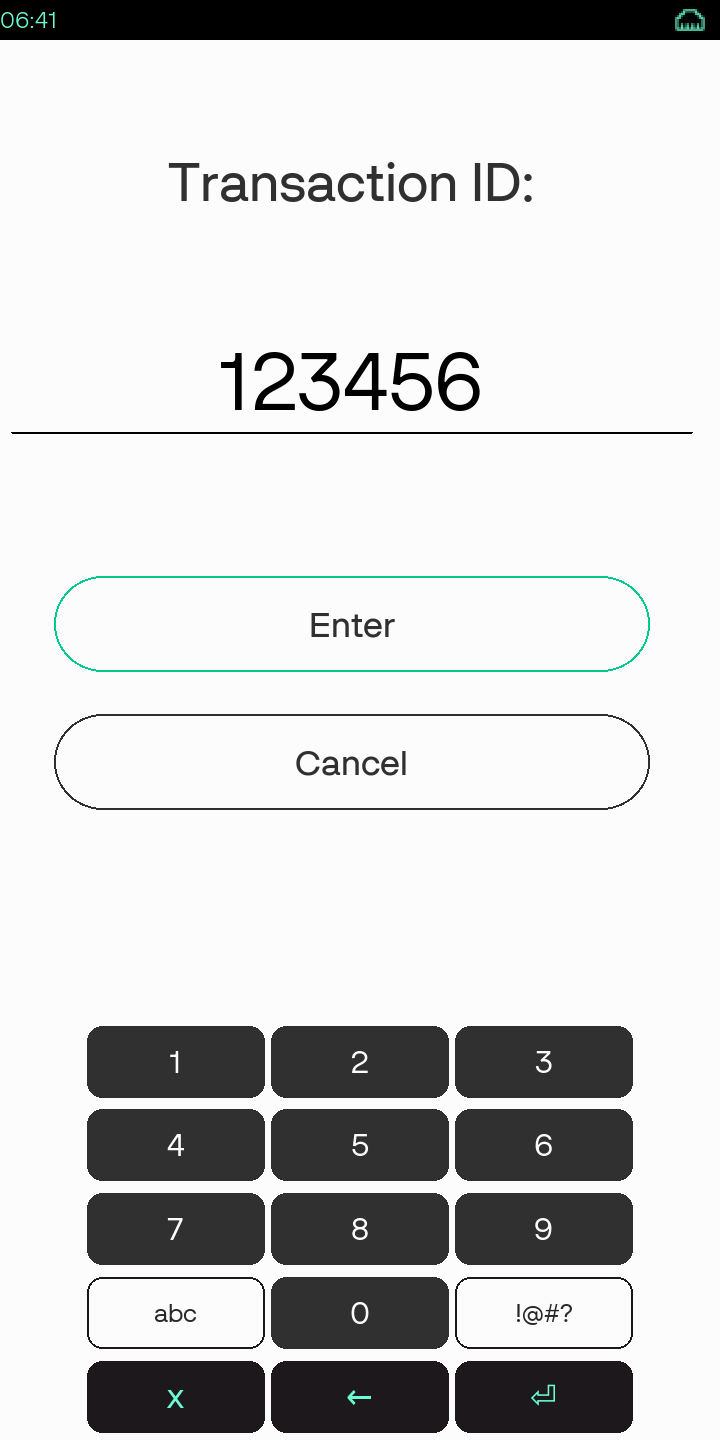
Enter the Transaction ID. |

|
Select Transaction ID: to Void. |

|
No records found for voiding the transaction. |
|
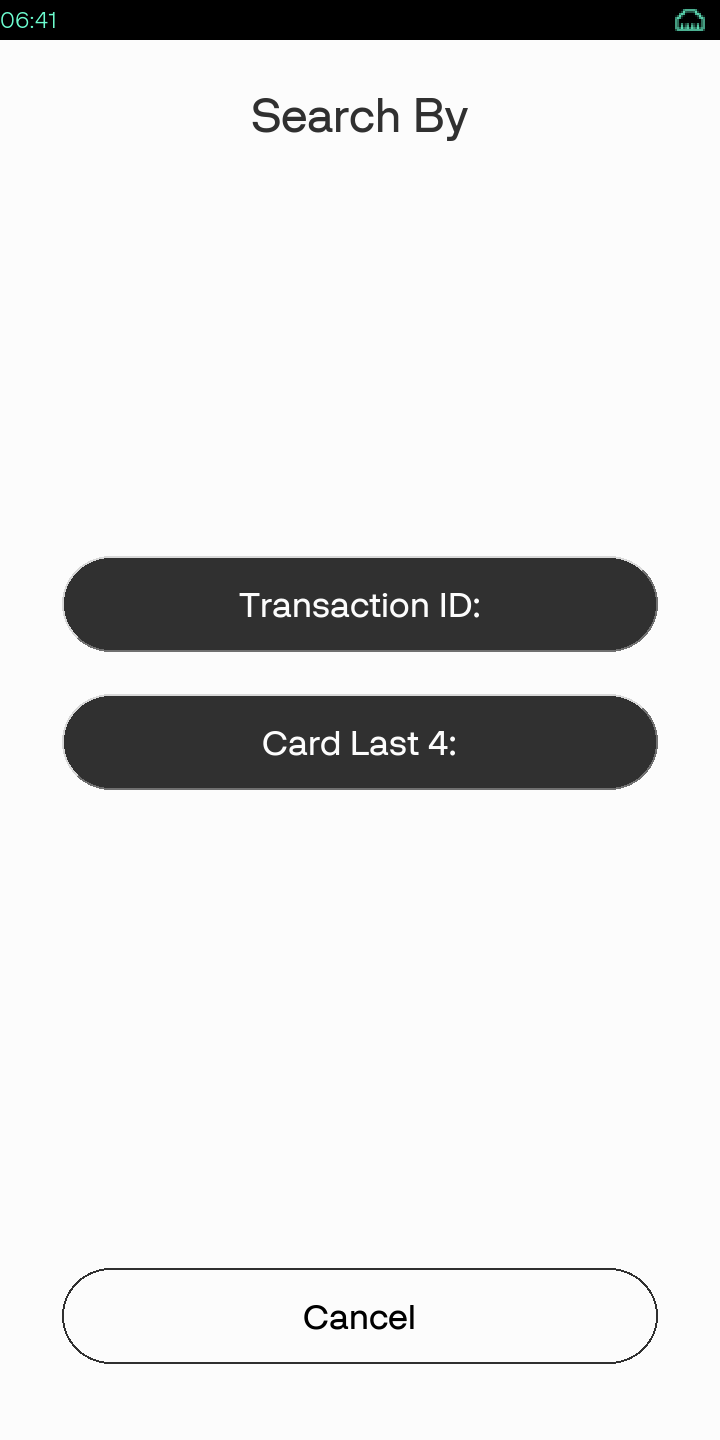
Select Card Last 4: to perform the Void. |
|
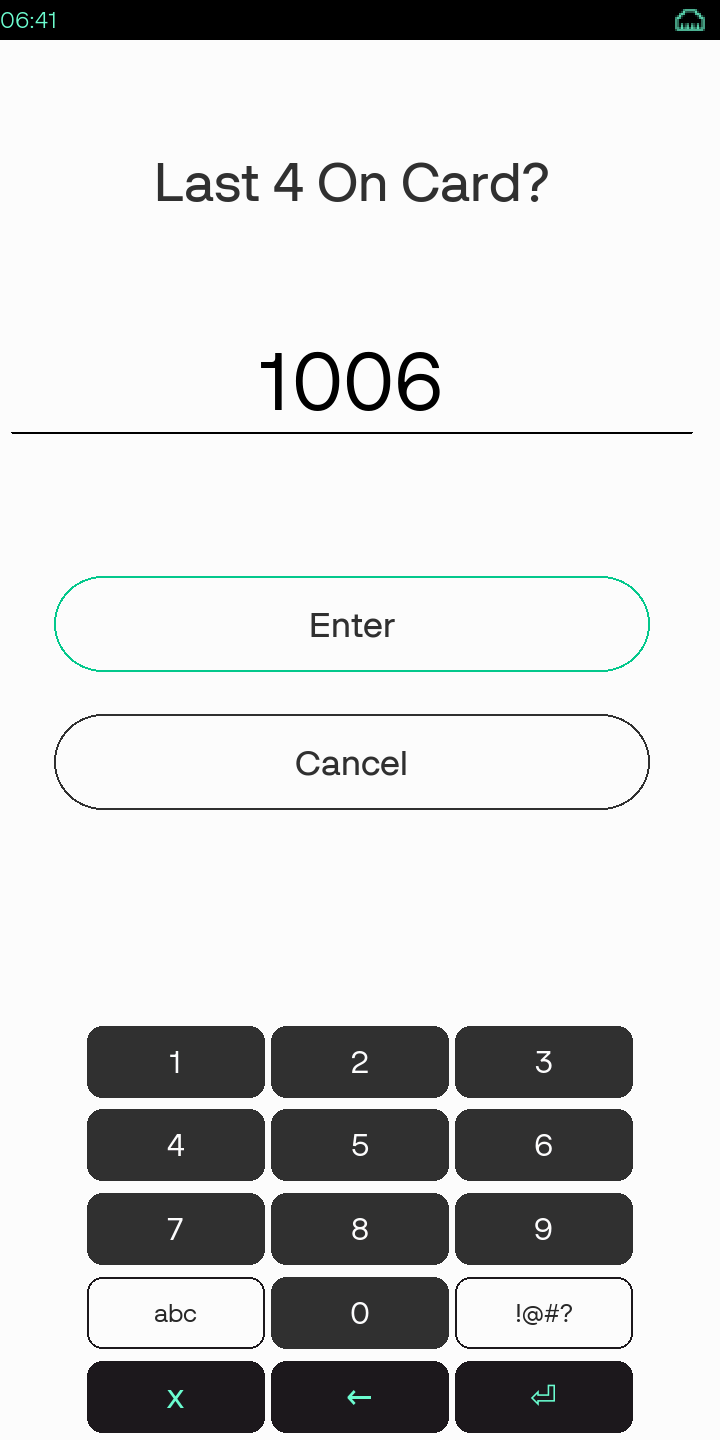
Enter the last 4 digits of the card. |

|
Void declined status screen due to no records found using last 4 digits of the card. |
|
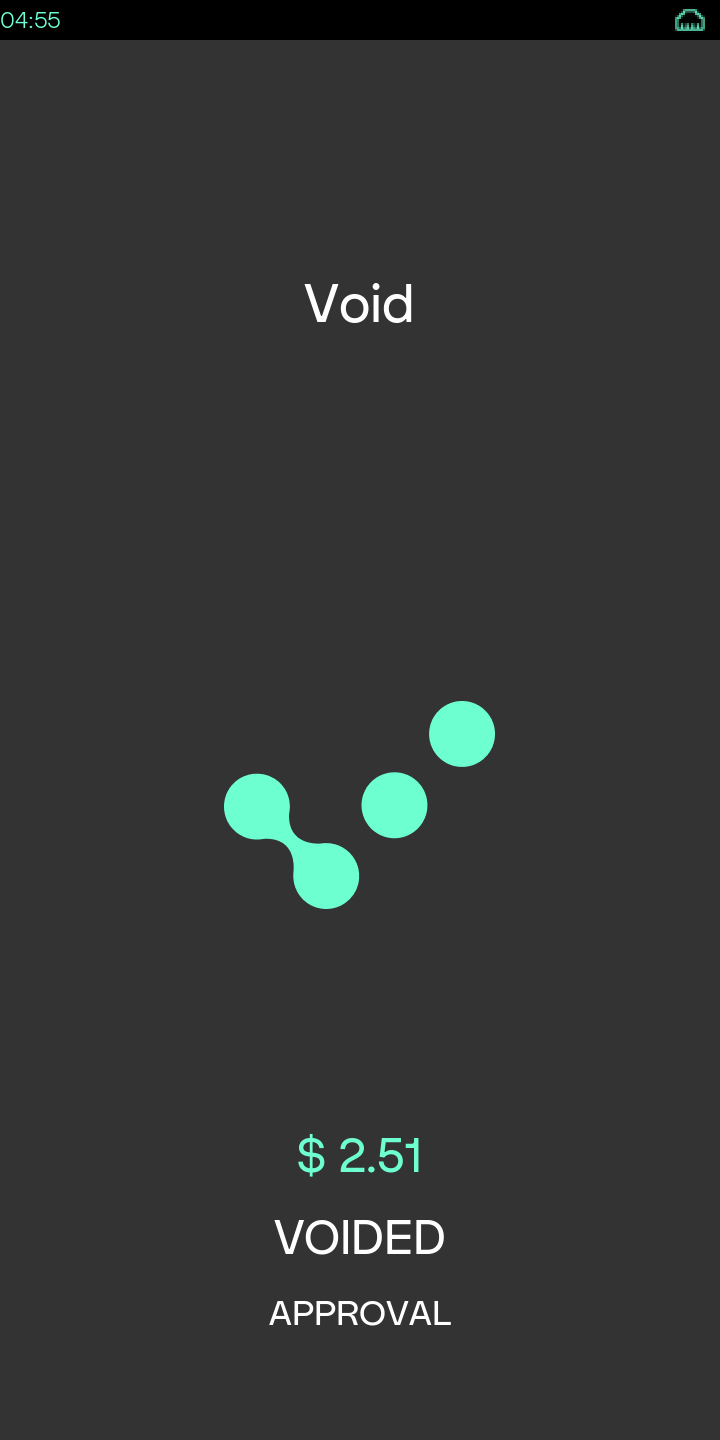
This is the Status screen as Voided (success), upon completing successfully the Void transaction. |
